Reels and video
Your photos and clips. Cut into Reels.
Turn the photos and clips you already have into Reels, with scenes, trims, captions from speech and your brand. Reels from your own media use no video credits.
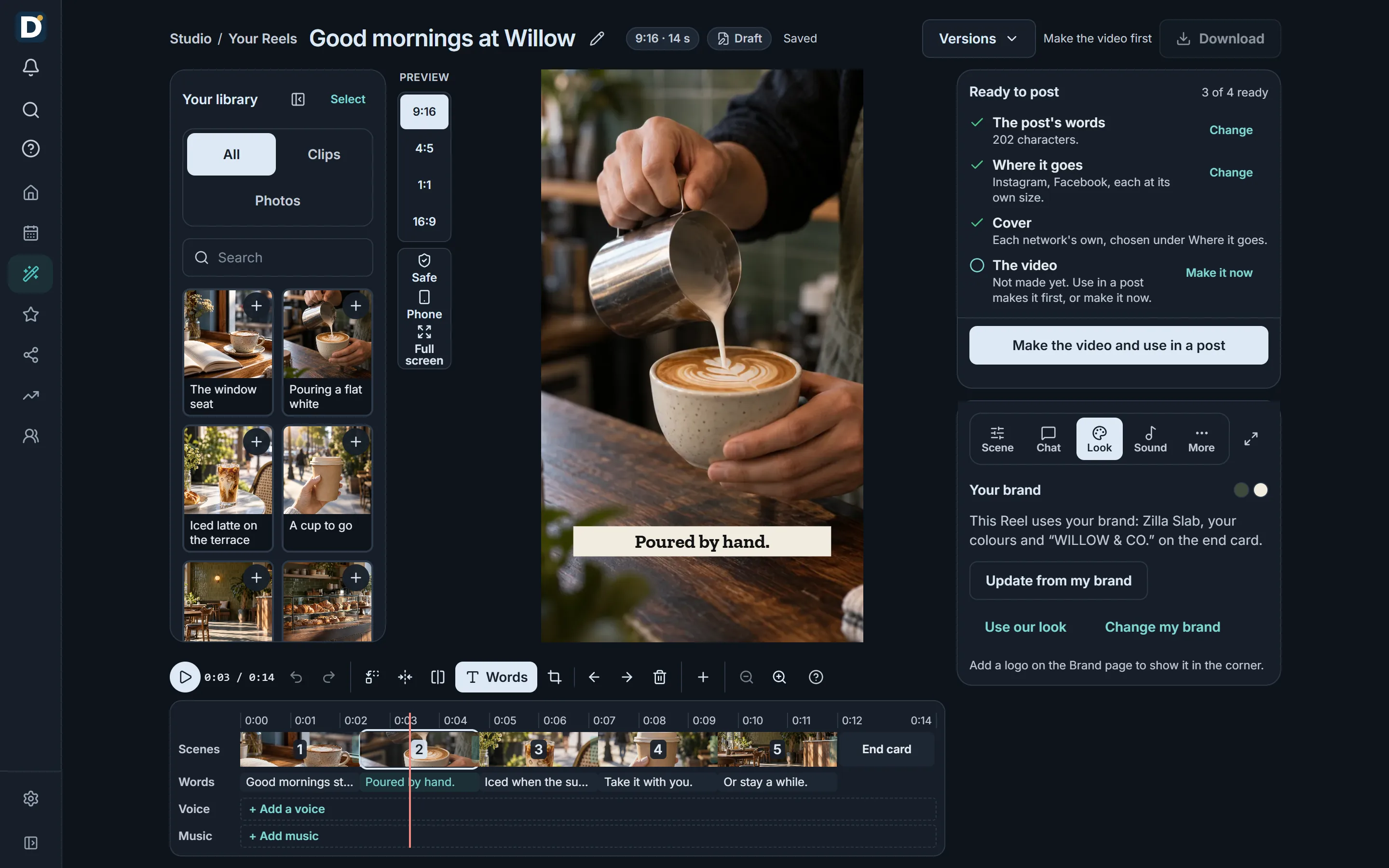

Real product, sample data.
A sample Reel for Willow & Co., an invented café. Made by the Reel editor from AI-made sample pictures.
What it does
From an idea to a Reel on Instagram.
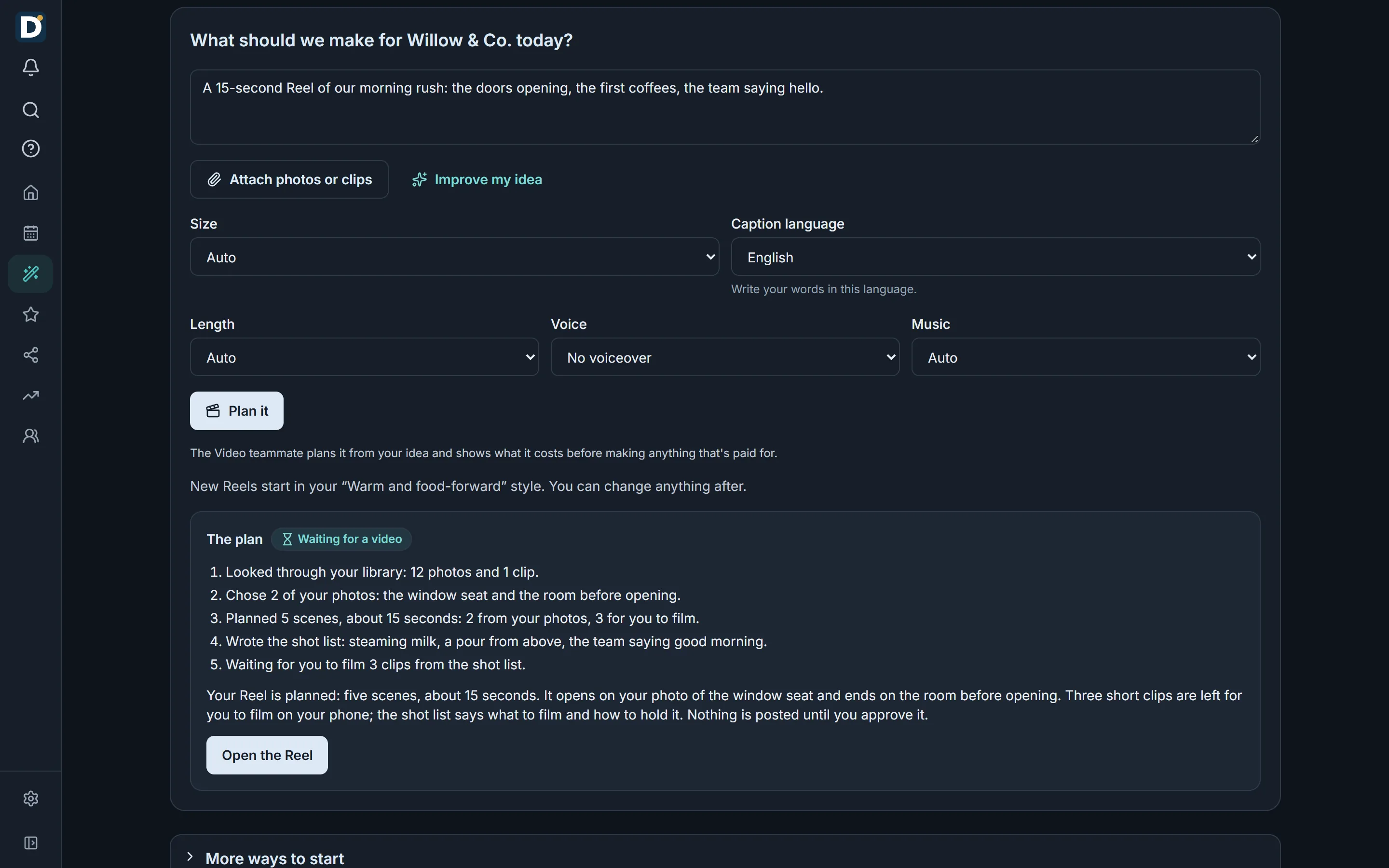
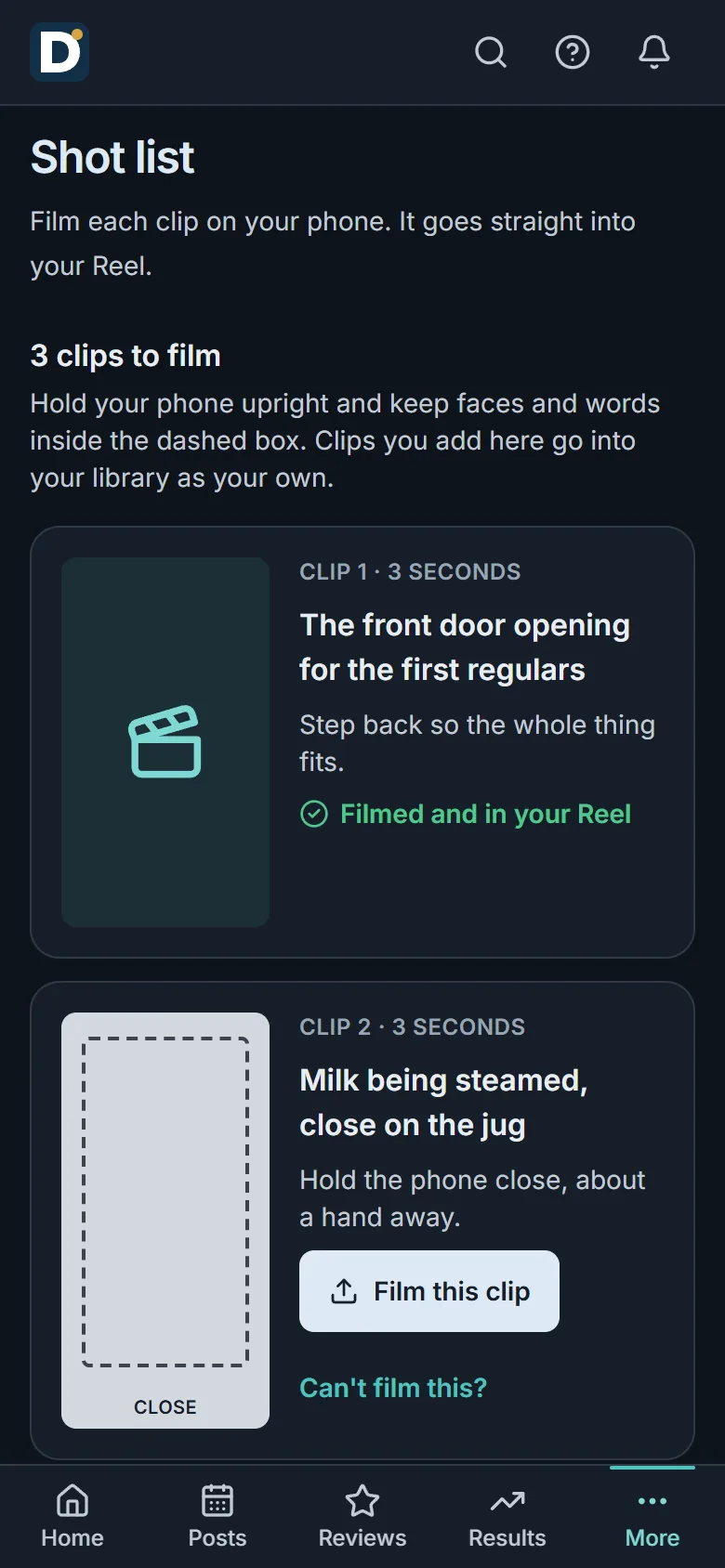
Plan it with Cue
- Tell Cue, the Video teammate, your idea. It plans the scenes from the photos and clips in your library.
- What's missing becomes a shot list for your phone: what to film, for how long, and how to hold it.
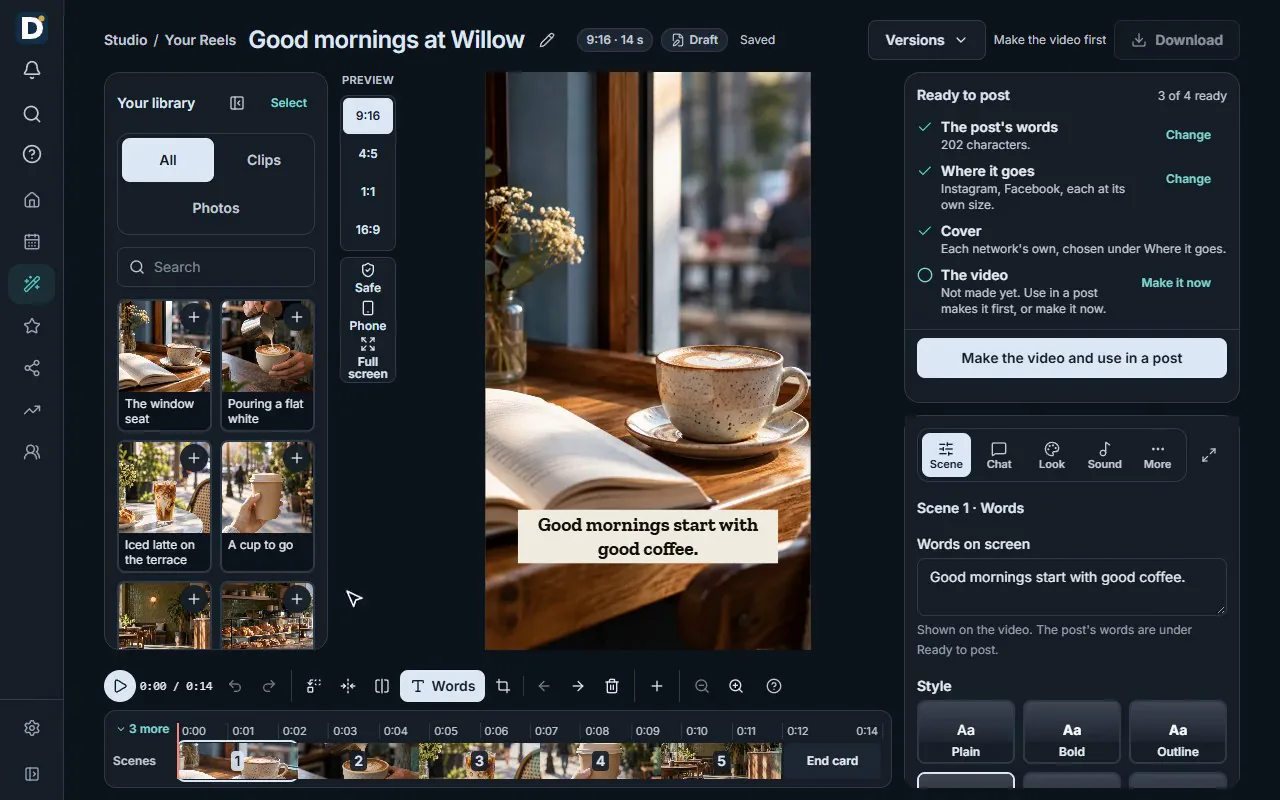
Edit it scene by scene
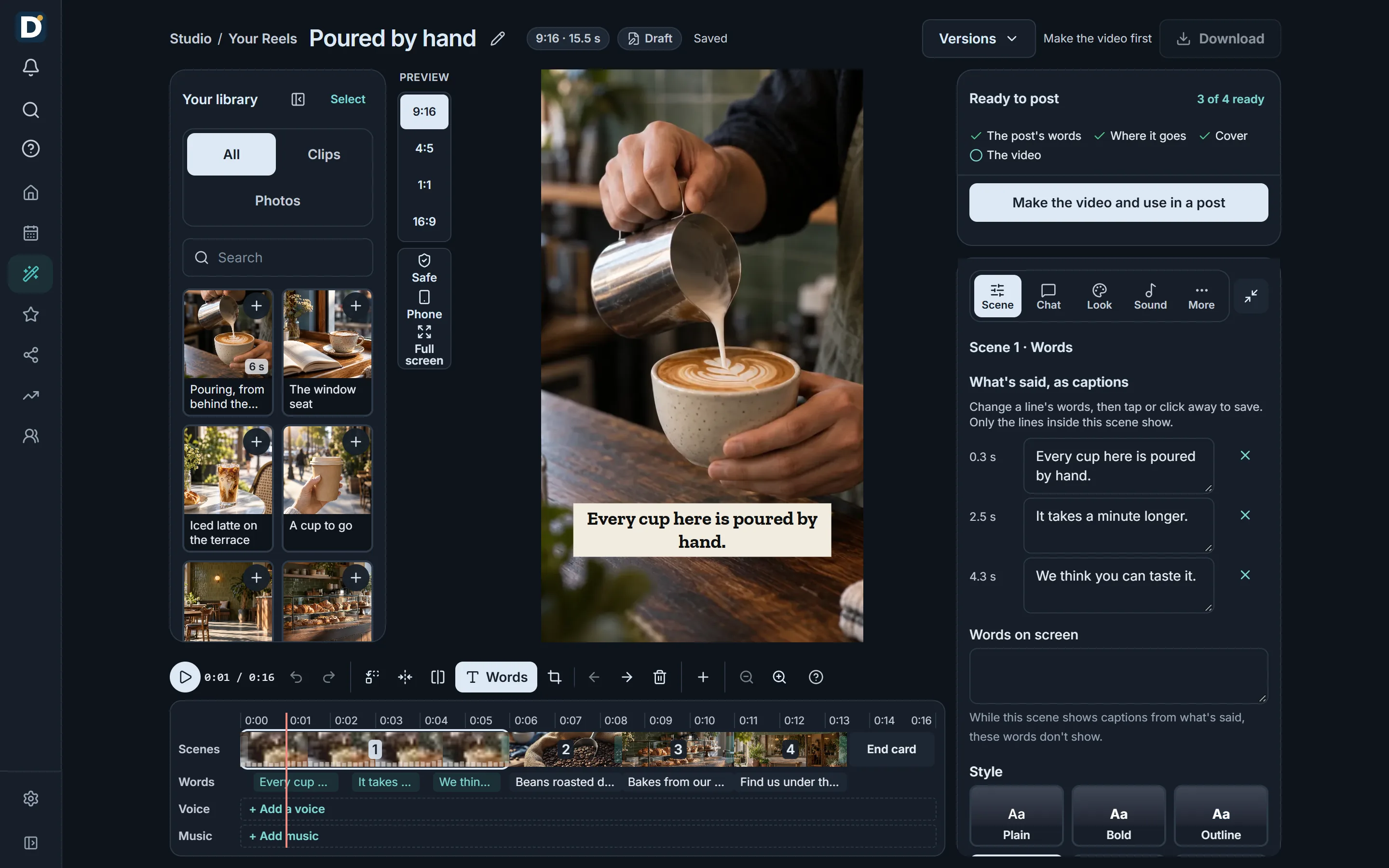
- Lay out the scenes, trim each clip and change the words on screen.
- Captions are written from what's said in your clips, and you can change every line.
- Cut long pauses and filler words with one setting.
Your brand, or a template
- Your font and colours on the captions, and your name on the end card.
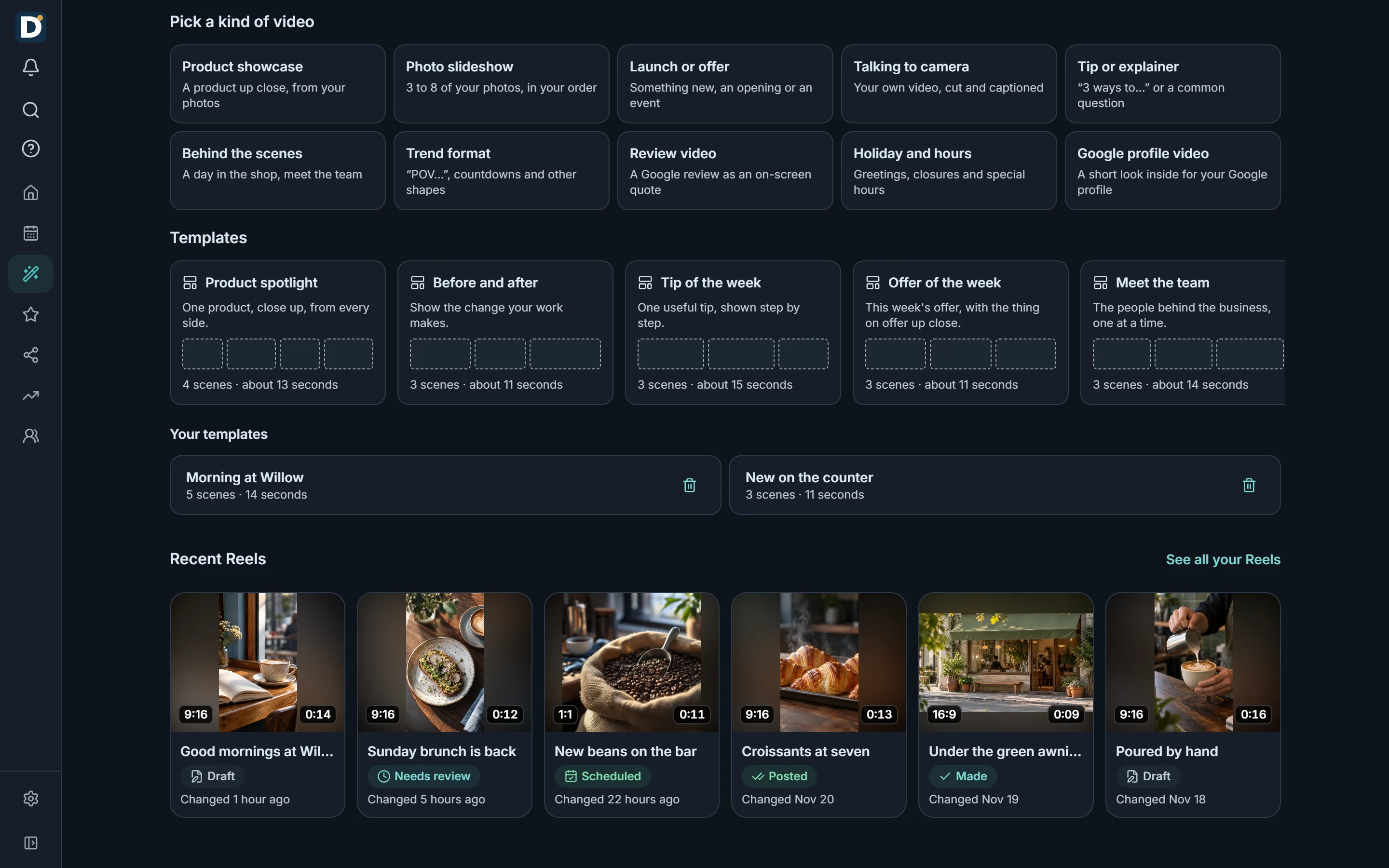
- Start from a kind of video or a template, or save your own.
New clips become a draft
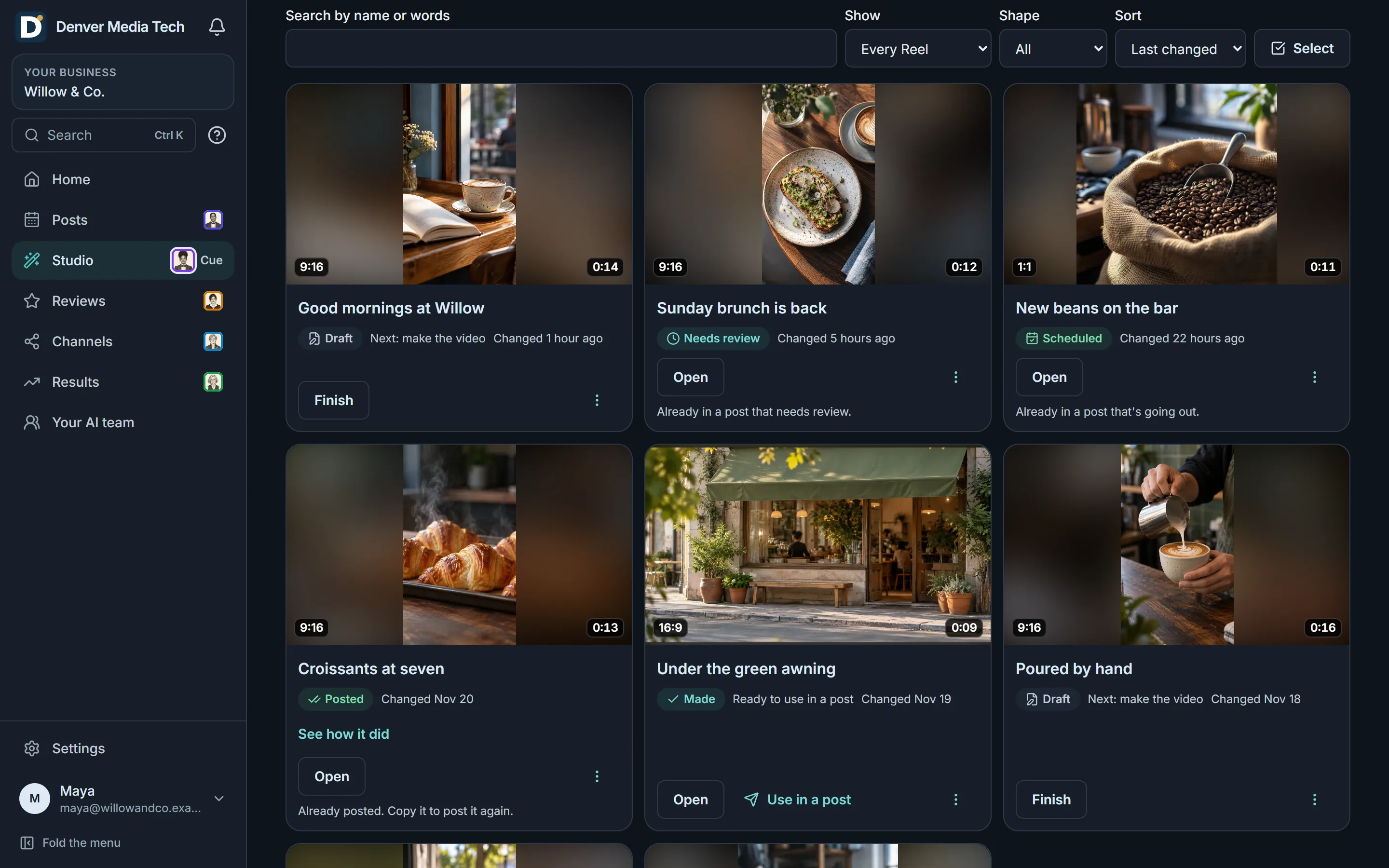
- Upload new clips and a draft Reel is made from them, ready for you to look at.
- Every Reel waits in Your Reels, marked as a draft, made, waiting for review, scheduled or posted.
Add music, then post
- Add music from our tracks, and hear each one before you choose it.
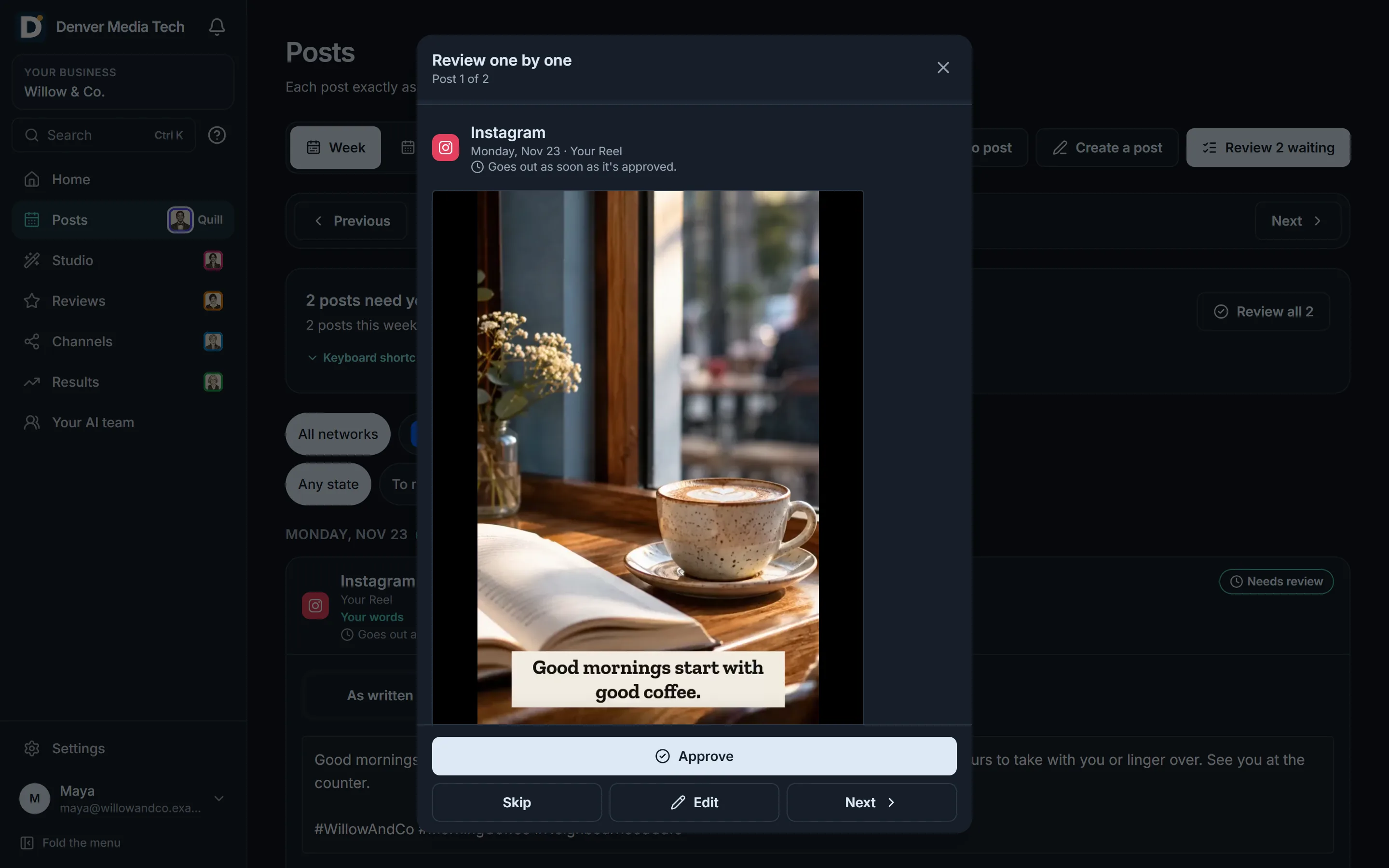
- Approve the Reel and it's posted to Instagram.
You stay in control
A Reel is posted only after you approve it. Cue plans and drafts, and never posts by itself. Clips you film for a shot list go into your library as your own.
Do Reels use credits?
Reels made from your own photos and clips use no video credits, and editing by hand in the Reel editor uses no agent edit credits. Each request Cue carries out on a Reel uses one agent edit credit.
Where are Reels posted?
To Instagram, after you approve them. Posting the same Reel to Facebook, YouTube, LinkedIn and Google is not available yet. Built, and being switched on with our first design partners.
Can I add music?
Yes. Choose from our tracks, each listed with its mood and length, and hear it before you add it.
Get started
See it with your business. You approve what goes out.
Sign in with Google and follow the guided setup. Every post waits for your approval.